How to force update a Flutter app
At some point you need people to stop using an old version of your Flutter app: an API changed, a security issue was fixed, or a release has a bug you can't leave in the wild. Neither the App Store nor Google Play can force an update for you, so the app has to check on start whether its version is still allowed and, if not, ask the user to update.
This guide shows how to do that with Appcockpit: you set the rules in a dashboard, and the Flutter SDK shows a forced or optional update prompt when the app starts. Changing the rules later doesn't need a new release.
In short:
- Add the
appcockpitpackage and wrap your app inAppUpdateWrapper. - In the Appcockpit dashboard, set a minimum version (for example
2.0.0) and turn on Force Update. - Everyone on a lower version gets a full-screen prompt that sends them to the App Store or Google Play and can't be dismissed.
Force update or optional update?
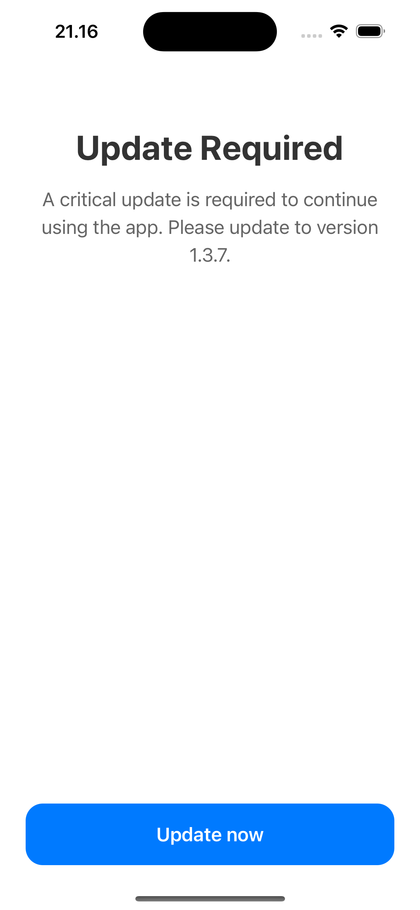
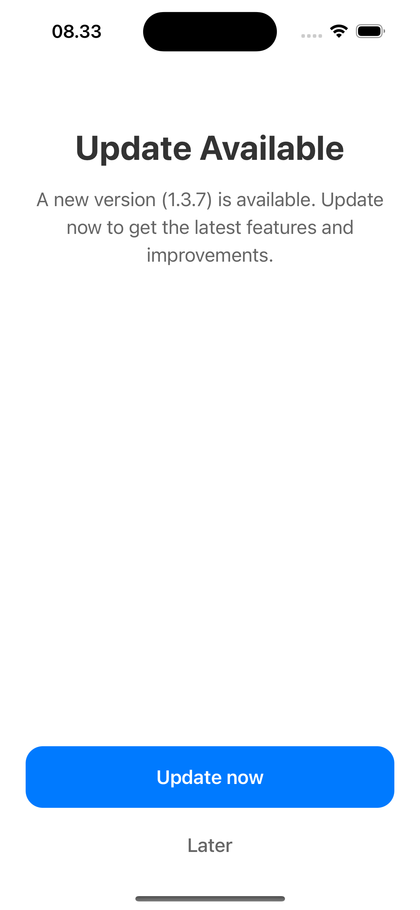
| Forced update | Optional update | |
|---|---|---|
| User can dismiss it | No | Yes, and a dismissed version isn't shown again |
| Use it for | Breaking API changes, security fixes, broken releases | New features, nudging people to upgrade |
| Risk | Blocks people until they update | People can stay on old versions |
A good default is an optional prompt for the previous release and a forced update only for versions you really can't support anymore.
How the check works

There are two kinds of rules:
- Minimum version: everyone below a version is asked to update, for example everything below
2.0.0. This is what you want in most cases. Users exactly on the minimum version are not prompted. - Version rule: a rule for one exact version, for example a release that crashes. It takes priority over the minimum version.
Both are set per platform (iOS or Android) and per environment (for example production and staging), and each one is either forced or optional.
The do-it-yourself options
You can build this yourself, and it's worth knowing the trade-offs:
- Compare against the store version with a package that reads the current App Store or Play Store listing. Simple, but it can only say "a newer version exists". You can't force only some versions, and it depends on store pages that change.
- Firebase Remote Config plus your own UI. Store a minimum version in Remote Config and compare it in the app. Flexible, but you build and maintain the version comparison, the update screens, the store links and the "dismissed" state yourself.
- Your own backend endpoint. Full control, and the most work: an API, an admin screen to change the minimum version, and the same app-side work as above.
- Google Play In-App Updates. Android only; there's no equivalent on iOS.
Appcockpit does the checking, the rules, the dashboard and the update UI for both platforms, so the integration is a few lines.
Step 1: Create your app in Appcockpit
- Create an account (there's a 30-day free trial, no credit card required) and create an app. See Getting started.
- Open the app's Settings tab and copy the App ID and the API Token.
Your app gets a production environment. Add a staging environment if you want to test rules on internal builds first.
Step 2: Add the package
flutter pub add appcockpit package_info_plus
package_info_plus reads your app's version from the native build, so you don't have to hard-code it. The appcockpit package uses shared_preferences to remember dismissed optional updates and url_launcher to open the store.
Step 3: Wrap your app
import 'dart:io' show Platform;

import 'package:appcockpit/appcockpit.dart';
import 'package:flutter/material.dart';
import 'package:package_info_plus/package_info_plus.dart';

Future<void> main() async {
  WidgetsFlutterBinding.ensureInitialized();
  final packageInfo = await PackageInfo.fromPlatform();

  final appInfo = AppInfo(
    platform: Platform.isIOS ? 'ios' : 'android',
    appId: '<appcockpit_app_id>',
    // iOS: the numeric App Store ID. Android: the package name.
    appstoreId: Platform.isIOS ? '1234567890' : packageInfo.packageName,
    appVersion: packageInfo.version, // e.g. "1.9.4"
    environment: 'production',
  );

  runApp(MyApp(appInfo: appInfo));
}

class MyApp extends StatelessWidget {
  const MyApp({super.key, required this.appInfo});

  final AppInfo appInfo;

  @override
  Widget build(BuildContext context) {
    return MaterialApp(
      home: AppUpdateWrapper(
        info: appInfo,
        apiToken: '<api_token>',
        child: const HomeScreen(),
      ),
    );
  }
}
That's the whole integration. On every start, AppUpdateWrapper checks the version and shows the prompt when a rule applies. Update now opens your app's page in the App Store or Google Play.
If your app has logged-in users, also pass userId to AppInfo. Appcockpit then counts each user once at their latest version, which makes Version adoption in the dashboard much more precise (see step 4).
Use a separate environment for debug and TestFlight builds, for example environment: kReleaseMode ? 'production' : 'staging' (from package:flutter/foundation.dart). Then you can try rules in staging without affecting real users.
Step 4: Set a minimum version
In the dashboard, open your app and go to Versions → Minimum Versions → Add Requirement:
- Choose the platform (iOS or Android) and the environment.
- Enter the minimum version, for example
2.0.0. - Turn on Force Update if users must update. Leave it off for a dismissible prompt.
- Optionally add a message, then click Create Minimum Version.
Users below 2.0.0 see the update prompt the next time they open the app. Before you create it, check how many users it would affect: the app's Dashboard shows it under Version adoption → What if you set a minimum version?
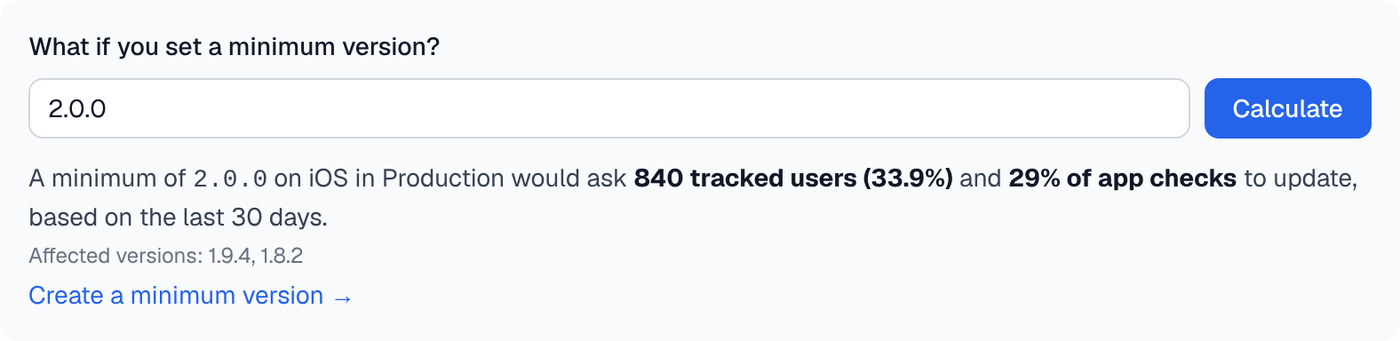
To block one specific release instead, add a version rule under Versions → Add Version with that exact version and Force Update Required turned on.
Step 5: Test it
At the bottom of the Versions tab, Test a version shows what a user on a given version gets right now, without changing anything:
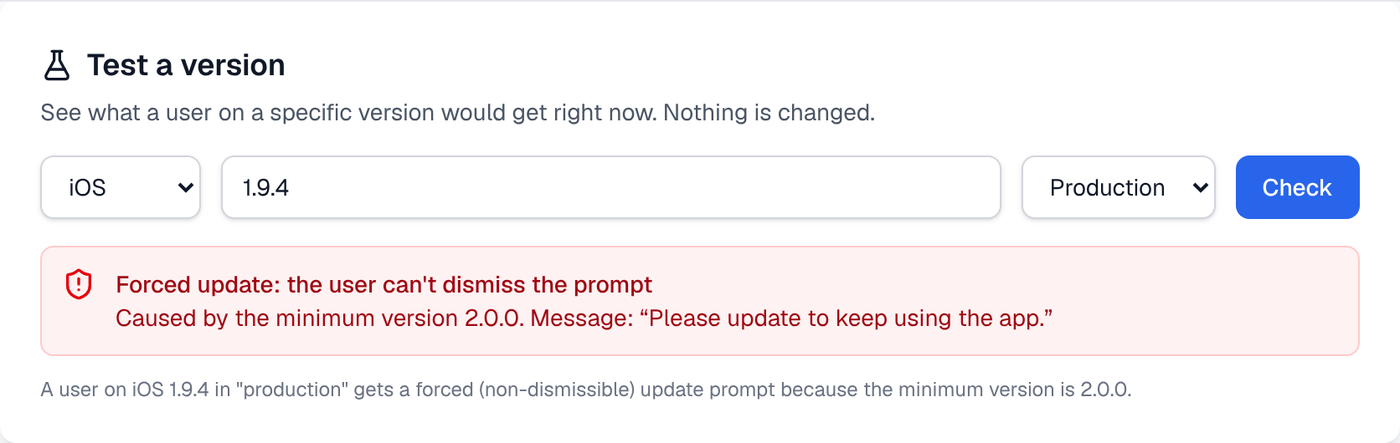
To see it on a device, set a minimum version in staging that's higher than your build's version and start the app.
Customize the update prompt
- Your own UI: pass a builder as
customUpdateScreen. It getsonUpdateand, for optional updates,onClose. See Custom update version UI. - Dialog instead of a full screen: call
checkVersionUpdate(context, appInfo, apiToken)yourself, for example after login. It shows anAlertDialog. - Messages and languages: add a message to the rule in the dashboard, plus translations per language. Pass
languageKey(for example'de') to choose the language of the built-in screens. - Button colors: pass
buttonTheme: const UpdateButtonTheme(backgroundColor: ..., textColor: ...).
Bonus: maintenance mode
The same SDK can show a full-screen maintenance message, for example during a database migration, without an app update. Wrap your app in MaintenanceWrapper as well and switch it on in the dashboard. See Maintenance.
FAQ
How do I force users to update a Flutter app?
Add a check on app start that compares the installed version (from package_info_plus) with a minimum version you control, and show a non-dismissible screen that links to the App Store or Google Play when the version is too old. With Appcockpit, wrap the app in AppUpdateWrapper and set a forced minimum version in the dashboard.
Do I need to release a new version to change the minimum version?
No. The app asks Appcockpit on every start, so a new minimum version or a change from optional to forced applies the next time users open the app.
What happens to users who are exactly on the minimum version?
They're not asked to update. Only versions below the minimum are prompted.
Can I force an update on iOS but not on Android?
Yes. Rules are per platform, so you can set different minimum versions for iOS and Android, for example while a release is still in review on one store.
What if the user has no internet connection?
The check fails silently and the app opens normally. The prompt appears the next time the app starts with a connection.
Does it work with Flutter web or desktop?
The update prompts link to the App Store and Google Play, so the SDK is meant for iOS and Android apps. For other platforms, use the REST API and your own UI.